How to Build a Pest Control Service Website With Mighty Sites (Fast and Easy)
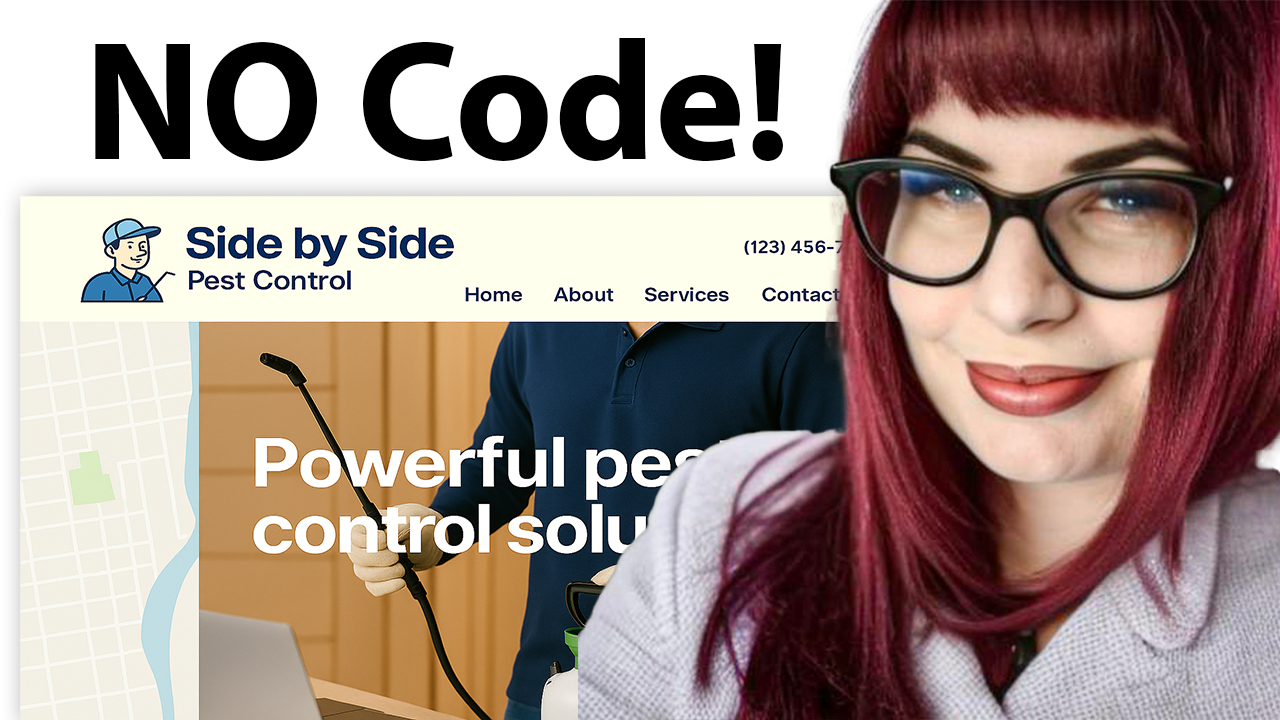
In this video, we break down how to build a professional website for your local pest control service using Mighty Sites — an easy-to-use platform that gives you a fully functional website for just $9/month.
Key Takeaways
-
Affordable Website Solution:
You can build a clean, professional-looking website for your pest control service using Mighty Sites for only $9/month. -
Simple Customization:
Mighty Sites lets you customize your site easily—upload your own photos, change color palettes, add text, and edit layout elements with a user-friendly interface. -
Elfsight Integration:
Using the Elfsight widget, you can add Google reviews, Instagram feeds, Facebook reviews, maps, galleries, booking forms, and more — no coding required. -
Lead Generation Tools:
Built-in contact forms, click-to-call buttons, and call-to-action sections make it simple for customers to connect with you. -
SEO and Trust Building:
Adding a Google Business Profile and featuring customer reviews on your site helps improve credibility and search visibility. -
Media and Social Links:
Easily add logos, phone numbers, and social media links (Facebook, Instagram) for better engagement and connection with customers. -
Pre-Written Copy and Stock Photos:
The platform includes helpful pre-written content and millions of stock photos to speed up the build process.
Video Transcript
Building a website for your local pest control service shouldn't be complicated and it shouldn't be too expensive either. That's why today I'm going to be showing you how to use the Mighty Sites platform to build a professional $9 a month website for your local pest control service. You don't need to know any coding, be a web professional in any kind of way, or hire anyone to help you with this. It's super easy to edit and there are loads of features to showcase your local business. So, let's get started.
In just a couple minutes, I'm going to be showing you how to build that professional $9 a month website on the Mighty Sites platform for your local pest control service. Once you've registered an account, the first thing it's going to ask you to do is to search for your markets. As you can see here, we've got hundreds of various markets to choose from for different local businesses. No matter what business you have, whether you have a local coffee shop, a beauty salon, maybe a handyman service, you'll find it over here with pre-written content and pre-selected images specific to that market.
At the top here, I'm going to go ahead and search for my market pest control service. Let's go ahead and select that option. Great. Now over here you need to tell Mighty Sites a few basic details about your pest control service including your company name, city and state or region. That's pretty much it. It will take that information and generate a professional website for you. Let's say for example I have a local pest control service called Side by Side Pest Control. I'm just using this business as an example. Let's pop that in over here. Side by Side Pest Control as well as my city and state or region. It doesn't matter where in the world you are operating from, you can enjoy the Mighty Sites service. We have happy users from all around the globe.
Okay, once you click on that continue button, Mighty Sites will generate a website for you. Do all the hard work with the information you've just put in. Look at that. It took a couple seconds and generated a professional website for my business. It will automatically bring up this popup as which is a short tutorial showing you how to customize your brand new websites in under 30 seconds showing you how to update the sections. Easily add business information, link your social media accounts, which is a great idea for better SEO and credibility, as well as choose layouts and colors for every section of your website.
However, I'm going to close that off for now because I'm going to be the one to show you around and show you how easy it is to make any changes to your brand new website. As mentioned before, it's literally got pre-written content specific to a local pest control service and pre-selected images as well. The images are really high quality. They're completely free for you to use as well. However, maybe you want to upload your own images and write a little bit of content about your business and your brand. You easily can make changes on your brand new website.
The first thing I'm going to show you, which is right here, the section at the bottom, is the Elfsight widget, which is a great integration. You don't have to make use of it if you don't want to. So, feel free to skip past this. However, it's definitely worth looking into to add different widgets to your website. If you haven't heard of Elfsight before, you can upgrade your website without any coding. There's various widgets to choose from to feature on your Mighty Sites website like a blog or comment section, Instagram feed, which is very popular, Facebook reviews, Google reviews. You even have appointment booking, a contact form, an FAQ section, Google Map section, photo gallery. There are so many to choose from.
I've already created an account. Once you've created an account, there are free plans available. Otherwise, there are paid versions which is going to set you back about 5 or $10. Very affordable. Over here, I'm going to go ahead and click on the Google reviews. I'd love to feature my reviews on my Mighty Sites website to build some credibility and show my customers and potential customers or the five-star reviews I have for my local business. You can select a different template to start with. I like this one over here. So, I'm going to go ahead and continue with this template.
This is where you can pick up your Google business profile with your reviews for your local business. If you don't have a Google business profile, I really recommend that you create one, claim your business on there, and encourage your customers to leave reviews. It really builds credibility and just makes your local business look more trustworthy. I've already got one for, as my example, Side by Side Pest Control. I'm going to go over here and search for it. Side by Side Pest Control. Go ahead and click on that search button.
So, I've got my Google reviews here. I'm going to go ahead and click on publish. Close this off. And then I'm going to go ahead and click on install on my Google reviews. So, it's really straightforward. You don't need to have any tech-savvy skills or be super tech-savvy or have any web development skills or no coding at all. All you need to do is click on copy code over here, head on over back to your Mighty Sites website, click on update section, and paste that coding in for your widget.
Great. Once you clicked on save, you can refresh the page and you'll be able to see your new Elfsight widget visible on your Mighty Sites website. As mentioned, you don't have to make use of this section. You can completely leave it off if you wish to, but I think it's a really great integration. And as you can see now, my Google reviews are now visible on my Mighty Sites website. Perfect for building credibility and trust with my potential customers.
So, I'm just going to quickly take you through each section, show you how simple it is to use Mighty Sites. Again, you don't have to be a web professional in any kind of a way. So, over here at the top, I'm going to click on the first section. To make any changes to the sections, you just click on that handy update section button. Over here, you can pop in your details, your contact details, so it will display on your website so your customers can easily reach out to you. Click on show email and site. There we go. So people come to my website, the first thing they'll see at the top is my contact information, maybe my phone number as well.
They can actually click on that phone number. It's click to call and the address as well. It is the address as well. They can actually click on it and be taken directly to Google Maps for directions. Over here on the left as well, you can update your social links. So if you're active on social media, you can paste in the links over here. And once you've done so, the little social media icons will be displayed at the top as well as at the bottom of your brand new website so your customers can easily give you a follow and get some engagement going.
Now, over here in the next section is where your logo goes in. If you don't have a logo yet, you can leave it off, but I really recommend that you use canva.com to create a free logo. Of course, there is a paid version as well, but I honestly think the free version is completely suitable, and you can find many templates for your local business over here. So, I've already created an account. I'm going to go ahead and search for pest control logo. As you can see, there's many templates to choose from.
There are some that are paid, of course, but lots of free ones as well that you can actually customize if it isn't quite suitable. You can change the colors, you can change the icon as well. So, I'm going to go ahead and just select this one. As mentioned, you can change the font, you can change the text, you can change the icons as well, as well as the colors to suit your business, but I'm just going to do a very quick one here. So, okay, the logo isn't quite suitable to a pest control service, but I'm just giving you an example how easy it is to create a logo on Canva for free.
It's really not necessary to hire a graphic designer if you're just starting your business out. You don't have a huge budget for a website and a designer and all those sort of things, you can really do this all yourself. So, I'm going to click on download over here and head on back to my Mighty Sites website that I've just created. Browse my device and I'm going to upload that logo side by side and click on save logo. You do have the option to edit your logo here as well. You can resize it, crop it or rotate it, add filters as well. And over here, you can make it bigger and smaller to suit your needs.
Great. Look at that. Now, if you want to change the colors as well, maybe to suit your logo, maybe these aren't your business colors. Perhaps yours are red and green, for example. Just click on that paint bucket at the bottom right hand corner. Go through the various color palette options. There are so many to choose from. Look at that. It's really all coming together nicely in the sections with the content that was pre-written. As I said, you can change it up to suit your business.
So maybe you want to write something specific to your business. But if you're short on time or you're not really great with words, I do love to make use of ChatGPT, which is again a free service. There are so many tools on the internet to help you with your website and your local business advertising. So over here, I'm going to go ahead and just type a prompt to ChatGPT to generate an about me section for my Mighty Sites website. So I can just customize it a bit.
Write me an about me section for my local pest control service based in Denver, Colorado. My business name is Side by Side and I've been in business oops been in business for 11 years. Great. Once you click enter, ChatGPT will generate an about me section that you can go over and copy it and paste it in over here in the about us section. Very helpful tool. Look at that. Awesome. I've now written some content for my business.
And of course, you can change those images by clicking on update image over here. You can browse your device and upload your own images or search through the photo library. We've got hundreds of free high-quality images to choose from. As you can see, the sections with buttons, those are called call to action buttons, and they're really important to get leads from your website. So, click on update section for the ones that have buttons. Underneath update action over here, you can change the text on the button.
So, maybe you want it to say call us or view our rate. Choose a link. And over here, you can link to another website. Maybe you take bookings via an appointment booker, an app that you've already used. You can pop in the website URL over here. You can link to another part of your website, maybe the contact form at the bottom or an action like click to call directions link or click to email. One of my favorite options is the PDF file. So you can upload a new PDF file.
When your customers click on that button, it will automatically go to that PDF file maybe with your rates or a catalog of the various services that you offer. At the bottom, we have this contact form here, which I mentioned great for lead generation. You can keep track of all the leads coming in in your Mighty Sites dashboard. Very helpful for your customers to reach out to you.
So, this is a one-page website, but you do have the ability to have a multi-page website. If you want to keep it simple, you can keep it as the one page. Everything's there, all the information, but maybe you just want to add a few more sections or something of the sort. All you need to do is click on add a new page. You can add up to nine pages on Mighty Sites. So, say for example, you want an FAQ section, which I think is really helpful.
You can click on add a new page and it will automatically open your new page here where you can also make use of an Elfsight widget if you wish to. Click on update section here. Change up that image and maybe you can go to put in here FAQ and then ask ChatGPT to maybe generate 10 FAQ frequently asked questions for my business as well. And it will automatically do that for me like what type of pests do you treat? Are your pest control treatments safe for kids or very important questions I think if you have a pest control service and you can pop them in over here and obviously customize it if you want to make more suitable for your business and click on that save that content.
When you're in your homepage you just need to go back to update section update menu and over here is where you can add that FAQ choose the link link on my website cuz you've already created FAQ page confirm. Click on add to menu and then your FAQ page save menu updates and your page will automatically reload after saving and your new page will be there in the menu section at the top. Awesome. So I can click through and go directly to my FAQ page now. Customers can do that to find details about my business.
Look at that. It was really easy. You can add up to nine pages as I mentioned. If you have a custom domain for your local business, which is a great idea to make your website look more professional, trustworthy, and really easy to access as well. If you've got a custom domain, just head to the bottom here and click on connect your domain. Domains are really easy as well. If you want a new domain, you can purchase one via the Mighty Sites platform as well.
However, if you already have a domain that you purchased as well, click on that option. Mighty Sites makes use of Entry which makes connecting your domain super simple. It does it all for you. All you need to do is pop in your URL over here, click on continue and hook it all up for you. So there you have it. I have my professional website that I've created on the Mighty Sites platform for my local pest control service.
Very happy with it. High quality images, all the content pre-written that I did change a little bit to suit my business. Everything was really easy to edit. I didn't have to be very tech-savvy to do so or hire a professional to help me with it. Remember, it's only going to cost you $9 a month to create a website just like this for your local pest control service on the Mighty Sites platform featuring your Google reviews here as well. And a contact form here at the bottom where your customers can easily reach out to you.
Give that 7-day free trial a go. See how well it works for you and your local business, how easy it is to make any edits to your new website. If you have any questions about Mighty Sites, feel free to pop them down below in the comment section. I'd be happy to get back to you with more information about the platform. I'm really wishing you and your business Mighty success.