How to Make a Website For Your Contractor Business [VIDEO]
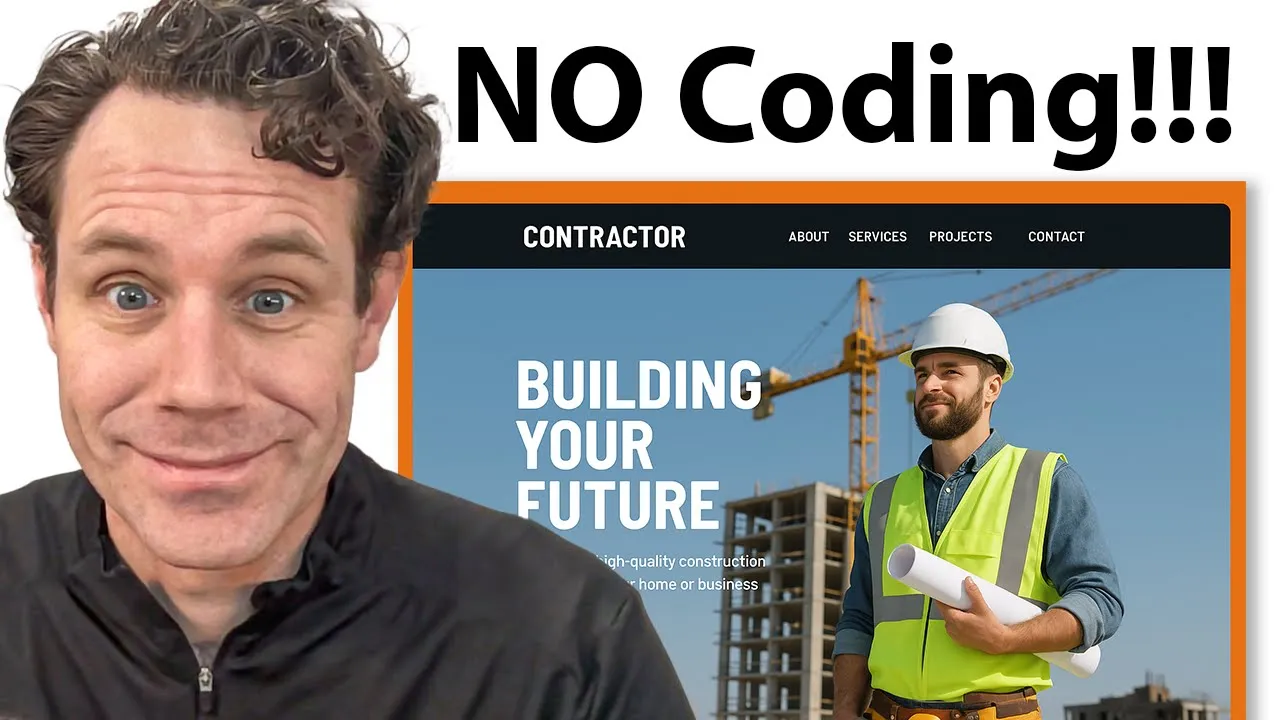
In this video, we break down exactly how you can build a simple, professional website for your contractor business for just $9 a month using Mighty Sites.
You'll learn step-by-step how to create a website that includes your Google and Facebook reviews, photo galleries, and detailed service pages — all designed to help you attract more local customers. We’ll show you how to easily customize your site, add your contact info, link your social media, upload your logo, update photos, and even connect review widgets.
Video Transcript
If you are a contractor looking to get a website for your business, you are in the right spot. In this video, I'm going to show you how for $9 a month to use this platform to build a simple, professional website that includes your Google reviews, your Facebook reviews, photo galleries, pages about your work and services that you offer so that you can attract more local customers, the services that your contractor business offers. It's fast, it's easy to use, it's only $9 a month. I'm going to show you how to build this website right here that I just built in a few minutes using Mighty Sites so you can launch your website today and help creating more of an online presence for your business that helps you attract more local customers. So, without further ado, let's jump right in and get started.
So, as I mentioned, I'm going to show you how to build a contractor website simple and easy for N bucks a month so you can have a super professional website like the one I just showed you. Let me jump in and get started. I'm going to type in contractor after you enter your information. Here's the cool thing about Mighty Sites. We know there's all different types of contractors. So, it doesn't matter if you're drywall contractor, general contractor, insulation contractor, whatever you're focused in, you can look through and pick the template that you feel is the right fit. If you're not sure, it's no problem. You can customize this easily. Just go with the general like the contractor one there that just says contractor. Oh, and somebody's building the mighty sites right now. So, it happens all the time.
I'm going to put Keegan the contractor Denver as my name. This is a service business, Denver, Colorado. And then I'm going to click continue. What this is going to do for me then is it's going to populate the entire template for me. This is supposed to be the easiest website builder and it is. So I'm going to go in here and you can see it gives me a little tutorial thing here. So I can click through, click all these different sections. It's really simple and easy to just click on where you want to update things and it'll show you how to do it.
So, Mighty Sites can be used to build all types of different professional websites for all types of different businesses. You can see the flexibility. Massage therapists, cleaning business, Christmas lights, moving companies. It's a really great template that's cheap and easy to use. So, let's show you how to make this work for your business. So, right out of the gate, you can see there's a whole bunch of photos that are appropriate all the way through this site. It's got a lot of information already. And now, all we're going to do is customize this thing.
So, first thing I'm going to do is go up here and put in my email. Want people to be able to contact me. I'm just going to type in my email and show that on the site. And you can see it shows up there. I'm gonna put in my phone number. There we go. Now, that shows up on the site. If you have some social media like a Facebook page where people can learn more about you, just copy and paste the URL that's right up here. You just copy it from Facebook, paste it in here, and it'll add your Facebook link automatically to not just the header, but also to the footer of every page of your website. So now you got your contact information there as well.
Next thing I'm going to do is I'm going to go over here to add a logo. The easiest way to do this is to go to Canva and then click on logo. So, this is just if you don't have a logo already. And then I'm going to search here contractor. Perfect. Here's a contractor. I'm just going to put Keegan. All right. So, there's a logo. And now Keegan. Keegan contractor logo. Right. All right. Here we go. We're going to download this. I'm going to have a transparent background. I'm going to go right back over here and upload my new contractor logo. There it is for my computer.
Mighty Sites has editing tools built in that make it really easy to customize this. Now, I'm going to save this logo. You can see it's really small, right? I can make it bigger. It's still small because there's a lot of space around my logo. I'm going to click on the pencil. And you can see I can get rid of all this space that Canva put in around my logo. And now that's going to help it not be so small. So now I'm going to click done. I'm going to save it. And there we go. Now you can see and I can even make it a little bigger if I want. So now you can see my logo is there.
I can also change the colors here. I can click and if I want to do like a different color palette or theme, I can click through and create a different color theme. So I'll just save that. So now there's a different color theme going on for my site, which is kind of cool. But you can switch that up to be whatever you want. All right. Now, I'm going to switch this up and say Keegan the contractor. And then I'm just going to say serving Denver, Colorado. and surrounding. All right. So, I'm going to save that. And then this call to action button. I'm going to just click here to update the call to action button. And that goes to my lead form. But I'm just going to say get get in touch. All right. And then I'm going to save that action button. So now when someone clicks on this, it goes right to the lead form on my website.
All right. So I'm going to go to this part next and I'm going to shorten this. This is really nice to say all these different things that I do, but it's probably a little much. So, I'm just going to remove half of this. You can list all your services out like that if you want to. Remove some of that so that it's more realistic as far as what we're going to put in there. If I want to change any of the photos on the site, I can browse my computer. I can search a photo library that's pre-built in and it has thousands of photos. Whatever you want to showcase, you can add there. or you connect your Instagram and pick from your Instagram photos to show throughout the site in any place that you want them.
This is looking pretty good so far. One thing that is really a great feature and you'll definitely want to add is I'm going to scroll down here to update section. Update section right here. And this is my Elsite section. So, let me tell you what Elsite is. So, I'm going to go to this. We've partnered with this company. They have all these widgets for reviews, Facebook reviews, photo galleries, whatever you want to add. So, I'm going to grab the Google reviews widget. So, I already created it and I'm going to install this on my site. I'm going to go over here to Google reviews, click on install, copy the code, and paste it in. Just like that. I'm going to save it, close it, and now if I go back here, I'm going to click on stop editing mode. And you can see I've got a pretty good website coming along already. And I haven't had to do much to get this to this point.
Add photos of yourself, of your own work to this, but now I've even got my Google reviews featured on my profile as well. Right. So now my site is looking pretty sharp. Let me show you. And again, I can change if this isn't your colors theme that you like, you can switch up the colors, too. People can get in touch with me, see my Google reviews, learn a little bit about what I do. I can direct people here to find my business.
Now, what I'm going to do next, okay, so I just went to chat GPT and I'm going to have it come up with the copy for my remodeling page. I'm going to show you how to add the remodeling page to your site. You just click on here to add any pages. You could add your services, photo gallery, whatever you want. I'm just going to put in remodeling and I'm going to add that as a new page to my site. All right. Now, I'm going to go here to update section. I'm going to update my menu and I'm going to add two things. I'm going to add a homepage because now that I'm adding a new page, we need to link back to the homepage. I'm going to add that to my menu. Move that to the top. Save it. And then the other thing I'm going to add is the link to my new page. So, I'm going to go back to my menu. I'm going to update the menu. I'm going to add remodeling services. So, I'm going to add that my website and then remodeling. Add that to my menu. I'll pop that up right underneath services. save my menu updates.
And now the next thing that I can do, so great, we've got the services. Now, here's the page that I get, right? One thing I'm going to add right here because you could add a photo gallery. I'm going to show you my Facebook reviews and just copy the code from Elsite. Look at you writing code. So, I'm going to save that. And now my Google reviews are going to be there. And now I'm just going to update this section. Let's see if there's a better remodeling image that I can use. Remodeling. Let's see what comes up. This is pretty cool. I maybe want to show people the vision of what the remodeling could be. I actually like this photo a lot. It looks like a couple of contractors working on a remodeling project. So, that's pretty appropriate. And then I'm just going to use what I came chat GBT, but you can write this yourself obviously, but this is my headline copy. Here's my subtitle I came up with. From kitchens to basement, we bring your project to life. Looking to update your home. Awesome. I'm just using this for the sake of time just so I can show you for this demo.
Now, I'm going to save the content and I'm also going to add a button. So, you just put in here and call today, right? Because you want your customers to get in touch with you. I'm going to choose where this links. I'm going to have it be an action button and click to call. Then I'm going to save that and close. Now, if I get out of editing mode, you can see I've got my Facebook reviews on this page, too. Okay. So, now you can see that content's in there. I've got my Facebook reviews. I've got a contact form on here. I've got information.
And let me show you. Once you have your site set up, this is the dashboard where you can see your leads as they come in. You'll get emailed and you'll get leads on the back end of your dashboard. You can connect a domain, one that you own or one that you want to buy through us. And then you can go back to update your mighty site at any time. Then you're ready to launch this and get leads for your business.